 Escapement
Documentation
Using Escapement
Everything from installing it to removing it again.
Installing
Download the disk image from the download page, open it, and drag Escapement to your Applications folder. It needs macOS 14 or later, and runs natively on Apple silicon and Intel.
Install it in /Applications rather than running it from the disk image. The
background agent is registered from inside the app bundle, and macOS is fussy
about where a login item lives.
Setting Time Machine to Manually
Open System Settings › General › Time Machine, click Options…, and set Back up frequency to Manually.
macOS keeps one backup frequency for the whole system. There is no per-disk setting, so Apple’s scheduler is either running for every destination or none of them. Leave it on and two schedulers are starting backups on the same disks.
When Escapement can see the conflict it shows a banner with a button that opens the pane. The banner is a warning, not a guard: schedules still save, and the agent still fires them. Changing the setting is on you.
Escapement can only see the conflict if it can read Time Machine’s preferences, which needs Full Disk Access.
Full Disk Access (optional)
Escapement works without it. It buys one thing: reading Time Machine’s preferences to confirm whether Apple’s scheduler is switched on.
Escapement asks once, on first run, and only after that read has already failed. Decline and it won’t ask again. To grant it later, add Escapement under System Settings › Privacy & Security › Full Disk Access.
Everything else goes through tmutil, which needs no special access.
The background agent
Schedules are kept by a background agent, so backups fire with the app closed. The first time you switch it on, macOS may want you to approve Escapement under Allow in the Background in System Settings › General › Login Items & Extensions.
Settings reports one of three states:
- Enabled — registered and running.
- Waiting for approval — macOS is waiting on you.
- Off — nothing fires on a schedule.
The agent puts a wheel in your menu bar whenever it is running. The agent is the only thing that can start a backup, so the icon is there exactly when something is scheduled to happen.
Creating a schedule
Select a destination, switch Enabled on, choose a frequency, and click Apply.
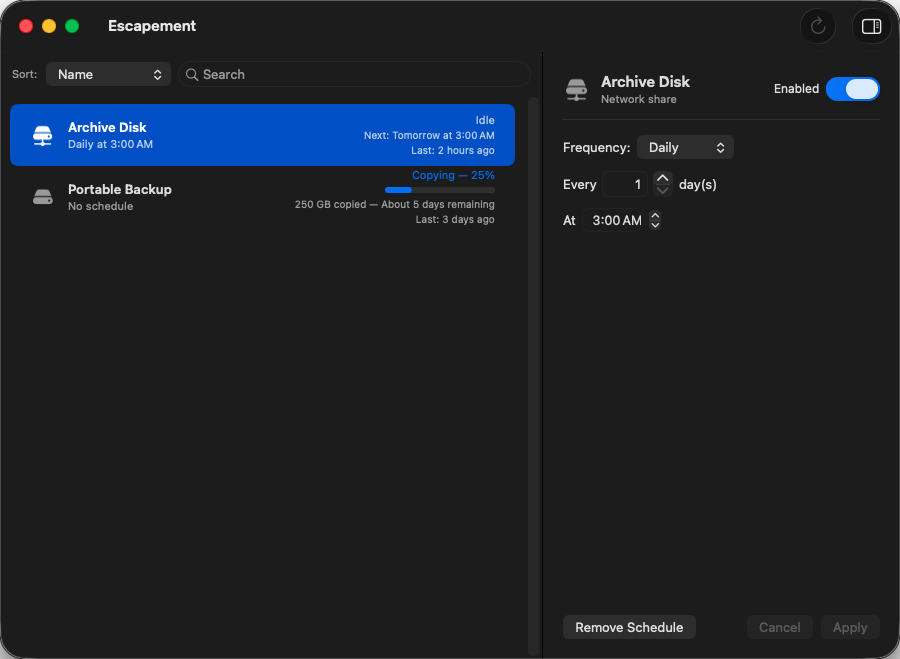
Escapement lists every destination it finds, so anything set up in System Settings is already here. Each row shows its schedule, what it is doing, and when it runs next.
Saving stamps the schedule with the time you saved it, so enabling one never starts a backup immediately. Remove Schedule takes a destination off the clock and leaves the disk alone.
Frequencies
| Frequency | What you set | Reads as |
|---|---|---|
| Hourly | An interval in hours, the minute past the hour, and an optional window of the day | Every 4 hours at :00 from 9:00 AM to 6:00 PM |
| Daily | An interval in days and a time | Daily at 2:15 AM |
| Weekly | Weekdays and a time | Weekdays at 7:00 AM |
| Monthly | Days of the month and a time | Monthly on the 1st and 15th at 3:00 AM |
The hourly window is optional and can cross midnight — 11:00 PM to 4:00 AM runs through the night. The interval counts from the window’s start rather than from midnight, so “every 4 hours from 11:00 PM to 4:00 AM” fires at 11:00 PM and 3:00 AM; with no window set, the interval still counts from midnight. “Every N days” counts from the day you saved the schedule: set every 2 days on a Monday and it runs Monday, Wednesday, Friday.
Times use your Mac’s calendar, time zone, and locale.
The menu bar
The menu opens with the next backup — or the live phase and percentage while one is running — and when the last one finished. Below that:
- Back Up Now, with a submenu when there is more than one destination.
- Stop Backup. Stopping is not instant; a network destination can sit in a stopping state for around half a minute.
- Pause Backups.
- Open Escapement.
- Turn Off Background Backups…, which unregisters the agent.
You can hide the icon in Settings, which is also the only way to get it back.
Pausing
Pause for 1 hour, 4 hours, until tomorrow, or until you resume.
Pausing stops scheduled runs. Back Up Now still works. The pause survives quitting and logging out, and the agent resumes on its own when it expires. Both the menu bar and the app show when it is on. Pause is global rather than per-disk, matching how Time Machine’s own scheduling works.
Settings
Press ⌘,. There are four preferences.
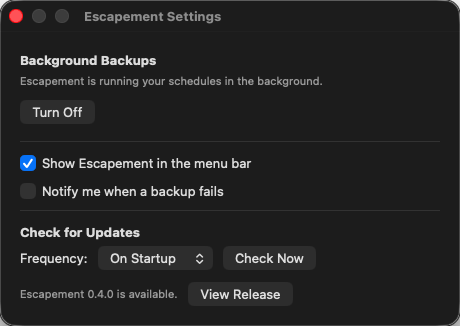
- Background Backups — the master switch.
- Show Escapement in the menu bar.
- Notify me when a backup fails.
- Check for Updates — how often the agent checks GitHub for a newer release: Never, On Startup, Daily, Weekly, or Monthly, plus a Check Now button. See Checking for updates below.
Checking for updates
The one thing Escapement’s background agent asks the network for: whether a newer release exists. Nothing else about the app touches the network at all.
Set the frequency in Settings — Never, On Startup (the default), Daily, Weekly, or Monthly — or press Check Now for an immediate one-off check regardless of that setting. On Startup runs once each time the agent starts, roughly once per login, which matters because the agent is the thing that’s actually running most of the time; the app itself only needs to be open to change the setting or to read the result.
A check compares the latest release on GitHub against the version you’re running. If it’s newer, you get a native notification and Settings shows a line naming it with a link to the release — nothing is ever downloaded or installed automatically. Clicking the notification, or the link in Settings, opens the release page in your browser.
Escapement is likely to be feature-complete not long after 1.0, so future
releases will mostly be rare, critical fixes — for a tmutil change, or a
security issue. That’s exactly the kind of release a “check GitHub
yourself” habit tends to miss, which is why this defaults to on rather than
off like the failure notification does.
One backup at a time
Time Machine only runs one backup at a time, for the whole system, not per destination. If a backup is still running when another destination comes due, that destination waits, and the wait isn’t silent: it’s recorded once as a skipped run, and the menu bar shows what’s holding the slot and since when.
When the slot frees, whichever destination has waited longest goes next, not whichever is most overdue. That way one destination that’s badly behind can’t keep cutting in line ahead of the one it just made wait.
A backup that’s genuinely stuck — no change in phase, bytes copied, or files copied, for two hours — gets stopped so the waiting destination can go. Time Machine picks it back up where it left off next time rather than starting over. A backup that’s just slow but still moving is left alone, with no cap on how long it can run. A destination that keeps failing gets retried less often each time, so a disk that can’t back up stops crowding out the ones that can.
Sleep and missed runs
A run that comes due while your Mac is asleep or shut down fires shortly after it wakes, after a brief delay so that waking to several overdue destinations doesn’t start several backups at once.
Escapement won’t wake your Mac to take a backup — that needs root and a privileged helper. If your Mac is reliably asleep at 3 AM, pick a time it is reliably awake.
Where your settings live
Everything Escapement stores is JSON in
~/Library/Application Support/Escapement/:
| File | Contents |
|---|---|
configuration.json | Your schedules, written by the app |
history.json | Past runs, written by the agent |
state.json | What the agent is doing, including any pause |
command.json | The channel the app uses to ask the agent for something |
Nothing is written anywhere near your backup data.
Turning it off, and uninstalling
To stop scheduling but keep the app, choose Turn Off Background Backups… from the menu bar or switch Background Backups off in Settings. Your schedules are kept, so turning it back on resumes where you left off.
To remove it entirely: turn off background backups, quit, and drag Escapement to
the Trash. Delete ~/Library/Application Support/Escapement/ if you want it
gone too. Time Machine’s backup frequency is still on Manually, so set that back
to whatever you want macOS to do.
There is no installer and no privileged helper, so nothing is left in system directories.
When nothing happens
If a scheduled backup didn’t run:
- Is Time Machine’s backup frequency still Manually? A macOS update can put it back.
- Is the menu bar icon there? No icon means no agent, which means no scheduled backups.
- Are backups paused? The first line of the menu says so.
- Was the Mac awake?
- Is the destination connected, and for a network share, reachable?
Settings says “Waiting for approval”. macOS is holding the registration. Approve Escapement under Allow in the Background in Login Items & Extensions.
The menu bar icon is gone. Either it’s hidden or background backups were turned off. Both are in Settings.
Building from source
Escapement is MIT-licensed and builds from a clean checkout with the Swift toolchain. There is no Xcode project.
git clone https://github.com/granroth/escapement.git
cd escapement

swift test                    # the EscapementKit test suite
scripts/build-app.sh release  # build and sign .build/Escapement.app
Signing uses a Developer ID. Set ESCAPEMENT_SIGN_IDENTITY to build under your
own, and ESCAPEMENT_UNIVERSAL=1 for a universal binary. Without a matching
identity in your keychain the build falls back to ad-hoc signing, which cannot
register the background agent.
Design notes are in docs/ARCHITECTURE.md, and each feature has a specification
in docs/specs/.